

Source Filmmaker creators often want to use original characters, props, and environments in their videos. However, regular 3D files cannot always load directly into SFM. SFM Compile converts prepared models into Source Engine formats that the software can read. This process involves SMD files, QC files, Crowbar compiler, and VMT materials. Understanding these tools helps creators avoid missing textures, broken animations, and invisible models.
Whether you are working with Blender or another 3D program, learning the compilation process makes custom asset creation easier, more reliable, and more enjoyable.
What Is SFM Compile and Why Is It Important?
SFM Compile means converting prepared 3D files into a format that Source Filmmaker can understand. Programs such as Blender and Maya commonly use OBJ or FBX files. Source Filmmaker uses compiled Source Engine files, especially the MDL model format and its supporting files.
Compilation works like a translator. Your 3D software creates the original model. The Source Engine model compiler changes that model into an engine-ready asset. This process can also include bones, animations, materials, collision data, and facial controls. Without it, a model may look correct in Blender but fail to load in SFM.
Understanding the SFM Compile Workflow and Required File Formats
The complete Source Engine workflow begins with a finished or partly finished 3D model. First, prepare the mesh and UVs. Then export SMD files or DMX files. After that, create textures, write a QC file, and compile everything with StudioMDL through Crowbar.
| File format | Purpose |
| OBJ | Basic mesh exchange |
| FBX | Mesh, rig, and animation exchange |
| SMD files | Mesh, skeleton, and animation data |
| DMX files | Model and animation data |
| QC file | Instructions for the compiler |
| MDL | Main compiled model file |
| VVD | Vertex data |
| VTX | Rendering data |
| PHY | Physics data |
| VTF textures | Source texture images |
| VMT materials | Material instructions |
The MDL file is important, but it is not always enough by itself. Supporting files must remain in the correct locations. Missing files can cause invisible models, broken animations, or missing textures.
Essential Tools for Compiling Models in Source Filmmaker
Several tools work together during Source Filmmaker model compilation. Blender is useful for modeling, UV editing, rigging, and animation. A compatible exporter converts the project into SMD or DMX data. Crowbar provides a simpler interface for compiling and reviewing errors.
StudioMDL performs the actual compilation. VTFEdit or another compatible program converts image files into VTF textures. A text editor helps you write QC and VMT scripts. Keeping these tools organized prevents confusion between modeling problems and compiler problems.
Crowbar and StudioMDL
Crowbar makes it easier to learn how to use Crowbar for SFM. Users can select a QC file, choose the game configuration, and start the compilation process. StudioMDL then reads the QC instructions and creates the required model files.
Always select the correct Source Filmmaker directory. If Crowbar points to the wrong game installation, the compiler may produce confusing messages. The official StudioMDL documentation provides useful technical information.
Preparing Your 3D Model, SMD/DMX Files, and Folder Structure

Good preparation makes the compilation process much easier. Remove unused objects, duplicate vertices, hidden geometry, and unnecessary materials. Check the model’s scale, rotation, normals, UVs, and origin point. These details affect how the asset appears inside SFM.
The Blender to SFM process also depends on the type of asset. A simple prop may only need mesh and material data. A character needs a skeleton, correct vertex weights, a reference pose, and animation data. Use clear filenames such as character_body.smd, character_idle.smd, and character.qc.
A useful project structure separates source files from final files. Keep Blender projects and original textures in one workspace. Store exported files in another folder. Keep QC scripts and compiled results separate. This structure makes revisions safer and helps identify errors quickly.
Creating QC Files: The Blueprint of Your SFM Model
A QC file is the instruction sheet for StudioMDL. It tells the compiler where to find the mesh, which material directory to use, what the output model should be called, and whether the model includes animations or physics.
Learning how to create a QC file is essential for anyone working with SFM custom assets. A small path mistake can stop compilation even when the mesh is perfect. QC scripts also allow advanced features such as bodygroups, attachments, collision models, and animation sequences.
| QC command | Function |
| $modelname | Sets the output model path |
| $body | Defines the main mesh |
| $bodygroup | Adds optional model parts |
| $cdmaterials | Sets the material path |
| $surfaceprop | Defines the surface type |
| $sequence | Adds animation data |
| $collisionmodel | Defines physics geometry |
| $attachment | Adds attachment points |
This example is suitable as a starting point for a simple prop. Character models require more commands for bones, animations, flexes, and physics.
Converting Textures to VTF and Setting Up VMT Materials
Source Filmmaker uses VTF textures and VMT materials to display model surfaces. VTF stores the image. VMT tells the engine how to use that image. Both files must be placed in the correct materials directory.
The process of how to convert textures to VTF usually begins with a PNG, TGA, or another image file. Open the image in VTFEdit and export it as a VTF file. Then create a VMT file that points to the texture. The material name used by the model must match the actual VMT filename.
The $basetexture path should not normally include the .vtf extension. Incorrect SFM texture paths often cause purple-and-black checkerboard textures. This problem does not always mean the model failed to compile. It may only mean that the material files are missing or misplaced.
How to Compile Your Model Using Crowbar and StudioMDL
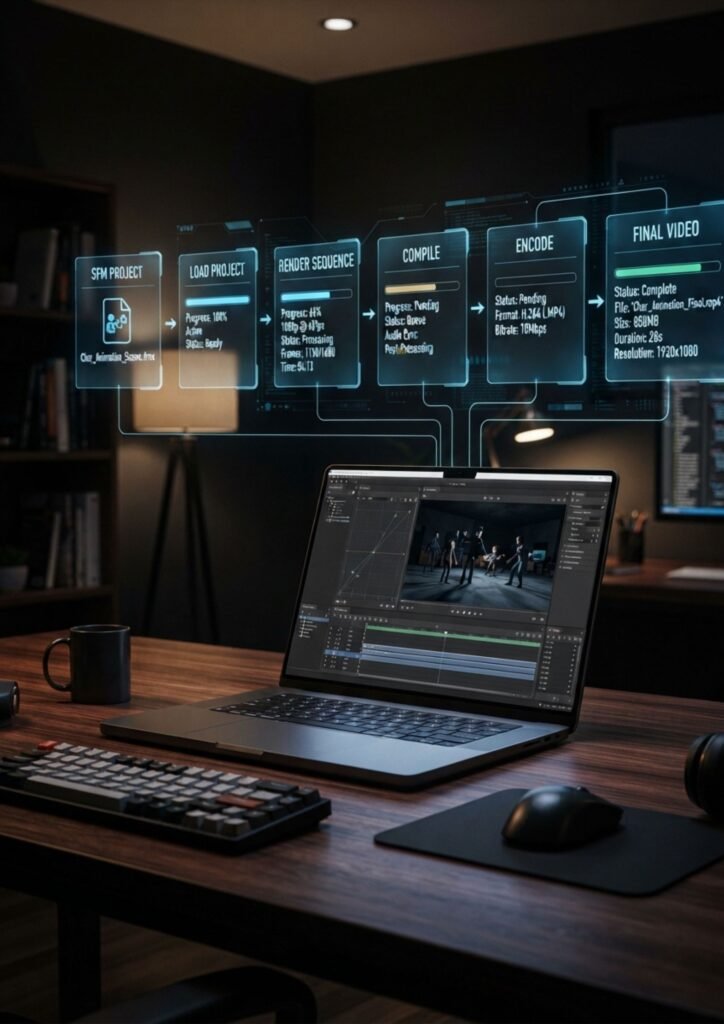
To learn how to compile models for SFM, open Crowbar and select its compile function. Choose the correct game configuration. Then select the QC file for your model. Review the input and output paths before starting the build.
During compilation, read the log carefully. A successful build should create the expected MDL and supporting files. If the log reports a missing SMD, invalid command, or incorrect path, correct that issue before installing the model. The first meaningful error is usually more useful than the messages that follow it.
Advanced users can also run StudioMDL directly from a command prompt. This method provides more control and may help with automated workflows. However, Crowbar is often easier for beginners because it combines settings, file selection, and compiler output in one interface.
Importing Compiled Models into the SFM Directory
After compilation, the next step is how to import custom models into SFM. Many creators place custom files inside the usermod folder. This keeps personal assets separate from original game content and reduces the risk of damaging installed files.
Compiled model files usually belong in the models directory. VMT and VTF files belong in the materials directory. Their paths must match the locations used in the QC and VMT files. For example, a model created as models/custom/bench/bench.mdl should follow the same folder pattern for its supporting files.
To understand where to put compiled models in SFM, check the output path defined by $modelname. Then copy the compiled files into the correct game folder. Open SFM and search for the model in the model browser or Animation Set Editor. Restarting SFM may help it recognize newly added content.
Skeletal Rigging, Physics, Flexes, and Facial Animation
Character models need more than visible geometry. They require a skeleton and properly assigned vertex weights. The ValveBiped skeleton is common in Source character workflows because its structure supports familiar animation conventions.
Learning how to rig a character for SFM involves creating bones, building a hierarchy, assigning weights, and exporting the reference pose. Poor weights can cause twisted arms, collapsing joints, or detached body parts. Test simple movements before attempting advanced animation.
Physics models control collision and ragdoll behavior. The process of how to add physics to SFM models usually involves creating a simplified collision mesh and defining it with $collisionmodel. The physics mesh should be less detailed than the visible model.
Facial animation uses flexes or shape keys. Learning how to add facial flexes in SFM requires prepared facial shapes and suitable QC settings. Flexes can control blinking, mouth movement, smiling, and lip-sync actions. Clean facial topology improves the final result.
Troubleshooting SFM Compile Errors and Testing Your Final Model
Common Model compilation errors usually involve missing files, incorrect QC syntax, broken weights, unsupported geometry, or wrong compiler settings. Always read the first important error in the log. Later messages may only be consequences of the original problem.
| Problem | Possible cause | Solution |
| Model is invisible | Wrong model path | Check $modelname |
| Missing textures | Incorrect VMT or VTF path | Check materials folders |
| Character stays in T-pose | Missing animation data | Check sequences and skeleton |
| Twisted limbs | Incorrect bone weights | Normalize and inspect weights |
| Compiler stops | Missing file or QC error | Read the first fatal message |
| Strange model scale | Unit mismatch | Check transforms and export scale |
| Broken ragdoll | Poor collision mesh | Simplify the physics model |
When asking why is my SFM model invisible, first confirm that compilation finished successfully. Then check whether the MDL file exists in the expected directory. Also inspect scale, origin, geometry, and the selected game folder.
To learn how to fix SFM missing textures, compare the material name in the exported model with the VMT filename. Check $cdmaterials and $basetexture. Make sure the VTF file exists in the exact path used by the VMT.
For how to fix invalid bone weights, inspect the model in Blender or Maya. Remove unused bone groups and normalize the remaining weights. Check that every required bone exists in the exported skeleton.
A useful case study involves a character that compiles correctly but appears gray in SFM. The artist checks the mesh and finds no geometry problem. The VMT file points to the wrong texture folder. After correcting the material path and restarting SFM, the character displays correctly. This shows why model testing must include both geometry and materials.
FAQ
What Is SFM Compile?
SFM Compile converts prepared 3D assets into Source Engine files that Source Filmmaker can load. It commonly uses SMD or DMX exports, a QC file, materials, and StudioMDL.
Can Blender Models Work in SFM?
Yes. The Blender to SFM workflow requires a compatible exporter, proper model preparation, a QC file, and compilation through Crowbar or StudioMDL.
How Do I Convert SMD to MDL?
The process of how to convert SMD to MDL requires a QC file and the Source Engine model compiler. StudioMDL reads the QC instructions and creates the compiled model.
Conclusion
Learning SFM Compile helps creators build original characters, props, weapons, and environments for Source Filmmaker. The process may seem technical at first, but it becomes easier when each stage follows a clear order.
Prepare the model carefully. Export compatible files. Create an accurate QC script. Convert textures correctly. Compile with Crowbar and StudioMDL. Finally, install and test the asset inside SFM.
Start with a simple prop before moving to complex characters. With clean folders, correct paths, and patient testing, custom Source Filmmaker models become much easier to create and maintain.